Workspaces
Eight task-focused modes over one document. Each workspace leads with the tools, panels, and inspector tabs its task needs — and remembers how you arrange them.
One document, eight modes
Varve's workspaces are not separate apps or templates. Design, Print, Draw, Photo, Motion, Logo, Codegen, and Email all operate on the same document, selection, viewport, and undo history — switching modes never forks your work, and switching back restores exactly what you left.
- Design — UI/UX design, components, tokens, responsive layouts, prototyping, and developer handoff.
- Print — multi-page layouts, typography, preflight, colour management, and production output.
- Draw — raster painting, vector freehand, brushes.
- Photo — nondestructive editing, retouching, selections, masking, and compositing.
- Motion — timeline animation, keyframes, and easing.
- Logo — wordmarks, marks, monograms, and brand systems.
- Codegen — design-to-code and design audit output.
- Email — responsive email template design, compatibility compilation, and provider export.
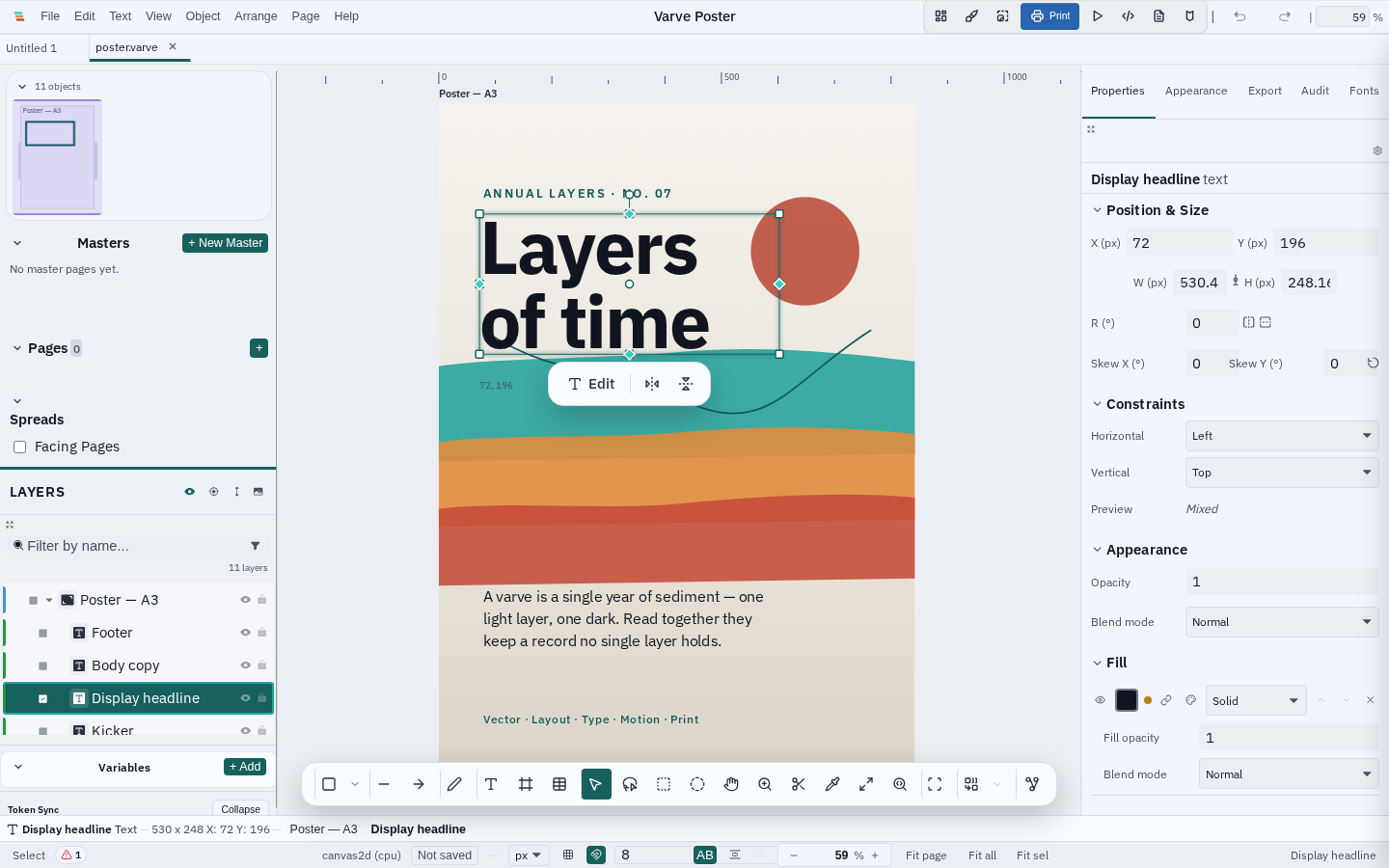
Customize once, remembered per mode
The Customize Workspace dialog controls every surface a workspace owns, applied instantly and saved per mode:
- Panels — show or hide Layers, Inspector, Timeline, Resources, Code, Logo, and History panels per workspace.
- Toolbar — reorder and hide tools, including tools that live inside flyout groups such as boolean operations and retouch brushes. Select, Hand, and Zoom always stay available so the canvas can never strand you.
- Inspector tabs — visibility per tab (Properties, Appearance, Adjustments, Export, Audit, Fonts).
- Status bar sections — active tool, cursor position, zoom, units, layout score, preflight, and more.
Layouts persist across launches even where browser storage is unreliable, and switching modes saves your current panel widths to the mode you are leaving and restores the saved widths of the mode you enter. Show All Panels recovers an accidentally hidden layout in one command.
Safe by default
Customization cannot remove essential navigation, every stored preference is sanitized against corrupted or outdated data, Reset restores the built-in layout for the current mode, and Reset All asks before discarding every workspace's customizations at once.
Beta note
Panel detaching, auxiliary windows, and per-panel docking are in development. The primary workspace surface — visibility, widths, toolbar composition, inspector tabs, and status sections — is complete and persisted per mode.