Geometry-aware outlines
Center, inside, and outside alignment for enclosed shapes; open paths keep a truthful centered stroke. Curved closing segments and compound contours stay in the replay path.
Keep vector outlines editable and add raster brush marks on the same canvas. Strokes remain ordered document data instead of flattening the artwork.
Center, inside, and outside alignment for enclosed shapes; open paths keep a truthful centered stroke. Curved closing segments and compound contours stay in the replay path.
Use solid or spatial gradient paint, multiple ordered stroke entries, width, visibility, caps, joins, miter limits, dash phase, and dash presets with exact custom patterns. The collapsed Advanced row names every non-default setting, new strokes copy the layer's previous style, and a zero-width stroke is flagged as invisible.
Open paths can carry independent start and end markers. Curved endpoints use their local tangent, so markers follow the path rather than its overall chord.
Editable text uses glyph strokes in the live Canvas2D route. Image strokes remain frame borders; transparent-subject silhouettes are a separate explicit operation.
Pen and pencil paths can retain per-point pressure. The renderer evaluates that profile as one filled outline so translucent widths do not darken where tessellated segments overlap. Pressure 0.5 is neutral, 0 tapers to zero, and missing samples use the neutral profile.
Vector strokes and raster marks share the existing editor and document. Switch to Paint, Eraser, or Smudge when the artwork needs pixel-level texture, line cleanup, or a soft paintover; no separate illustration document is required.
Choose pure smudge, loaded-paint, or fingerpaint behavior in Tool options. The reservoir is frozen per stroke so a setting change cannot rewrite an in-progress mark.
Choose Sketch Pencil, Inking Nib, Opaque Paint, or Soft Shade, then refine pressure, size, flow, and accumulation in the existing brush controls. Soft Shade limits one gesture to its opacity while flow controls buildup; separate strokes can deepen it. Browser previews use the production stroke generator and tile compositor.
Opt into merged raster-layer sampling when texturing a new paint layer. Deposits still go to the active target, keeping the source layers intact.
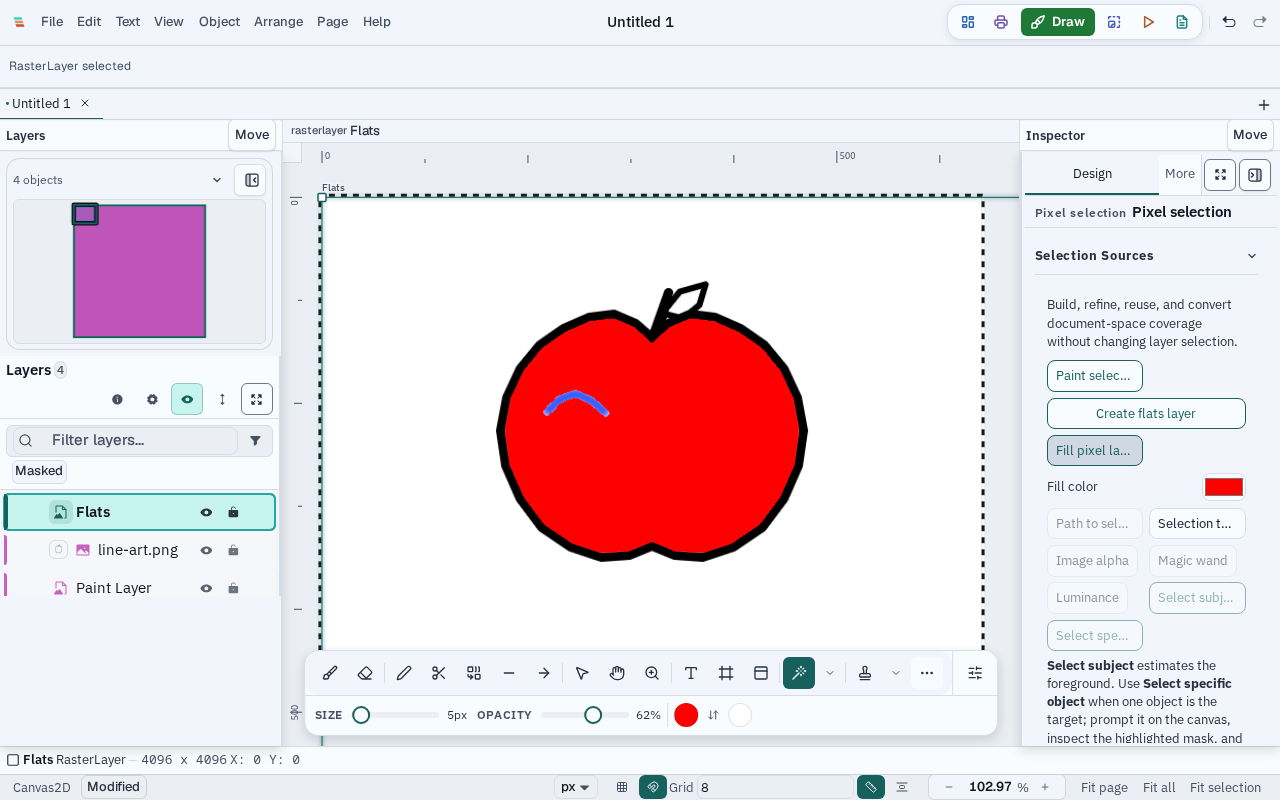
Sample one raster or the visible artwork with Magic Wand, create a separate Flats layer, and fill color beneath your linework. The outline stays editable; undo, save, reopen, and grouped PNG export preserve the combined result.
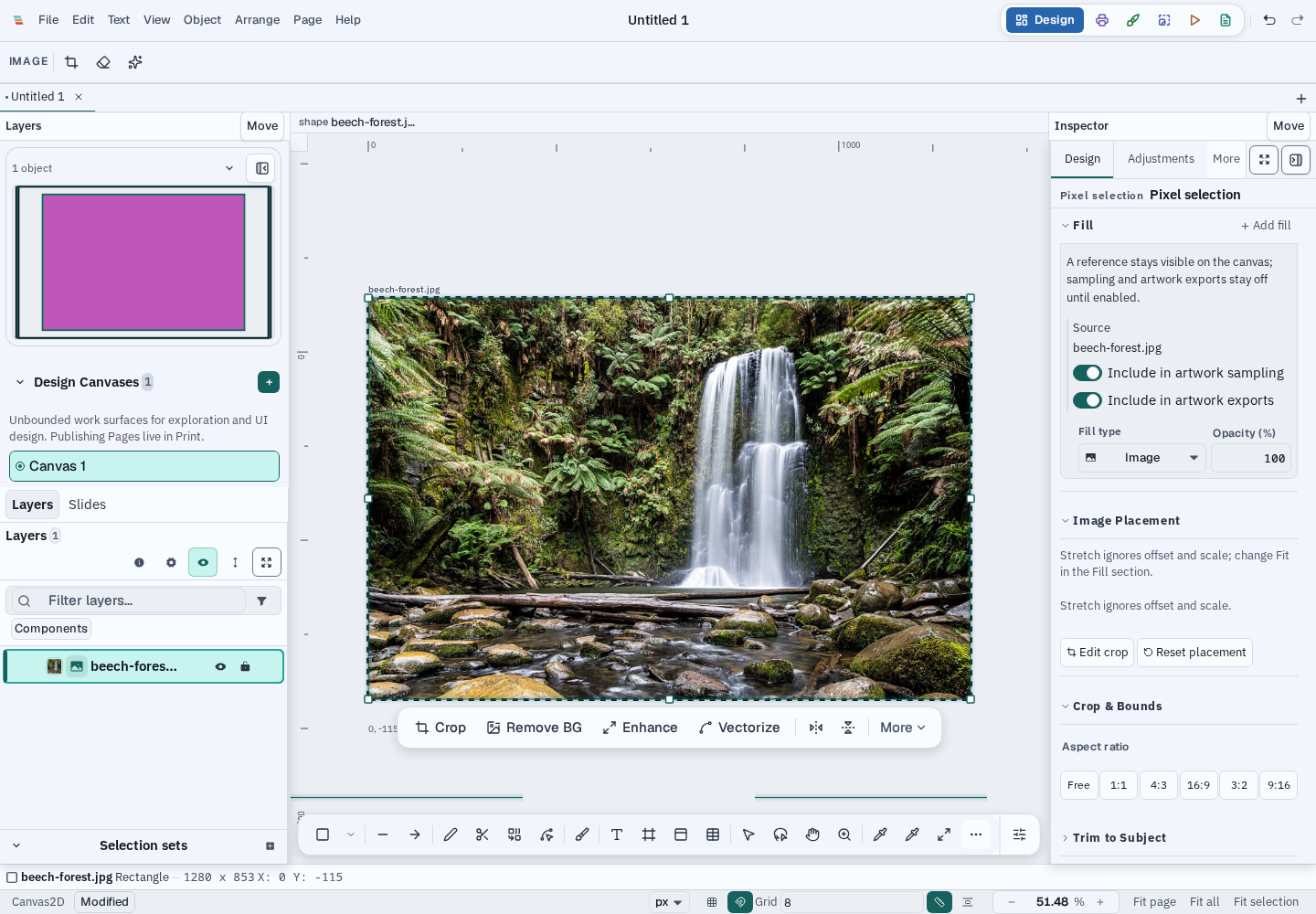
Mark an imported image in the existing Fill Inspector while keeping it visible on the canvas. Visible-artwork sampling and artwork export are separate opt-ins, each off by default; the image and settings survive save and reopen. Only the source filename is stored as metadata, not the original path.
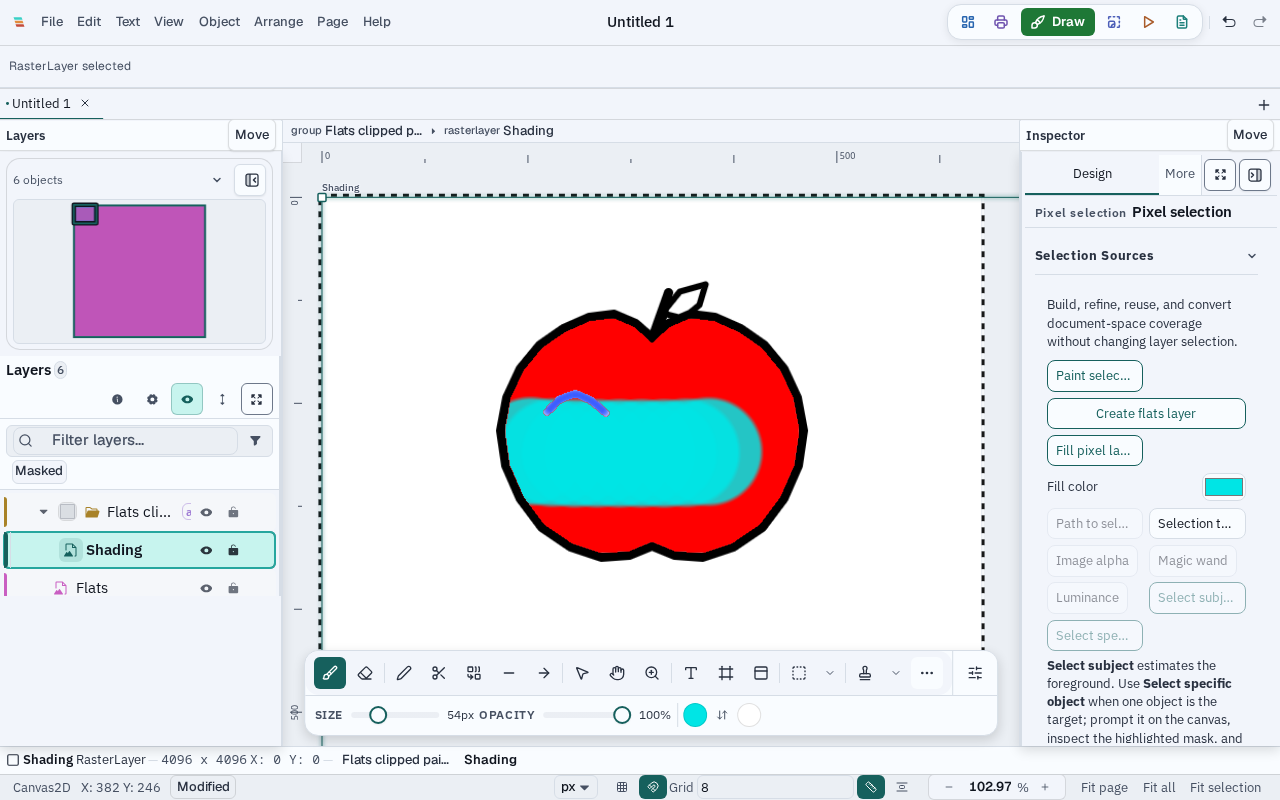
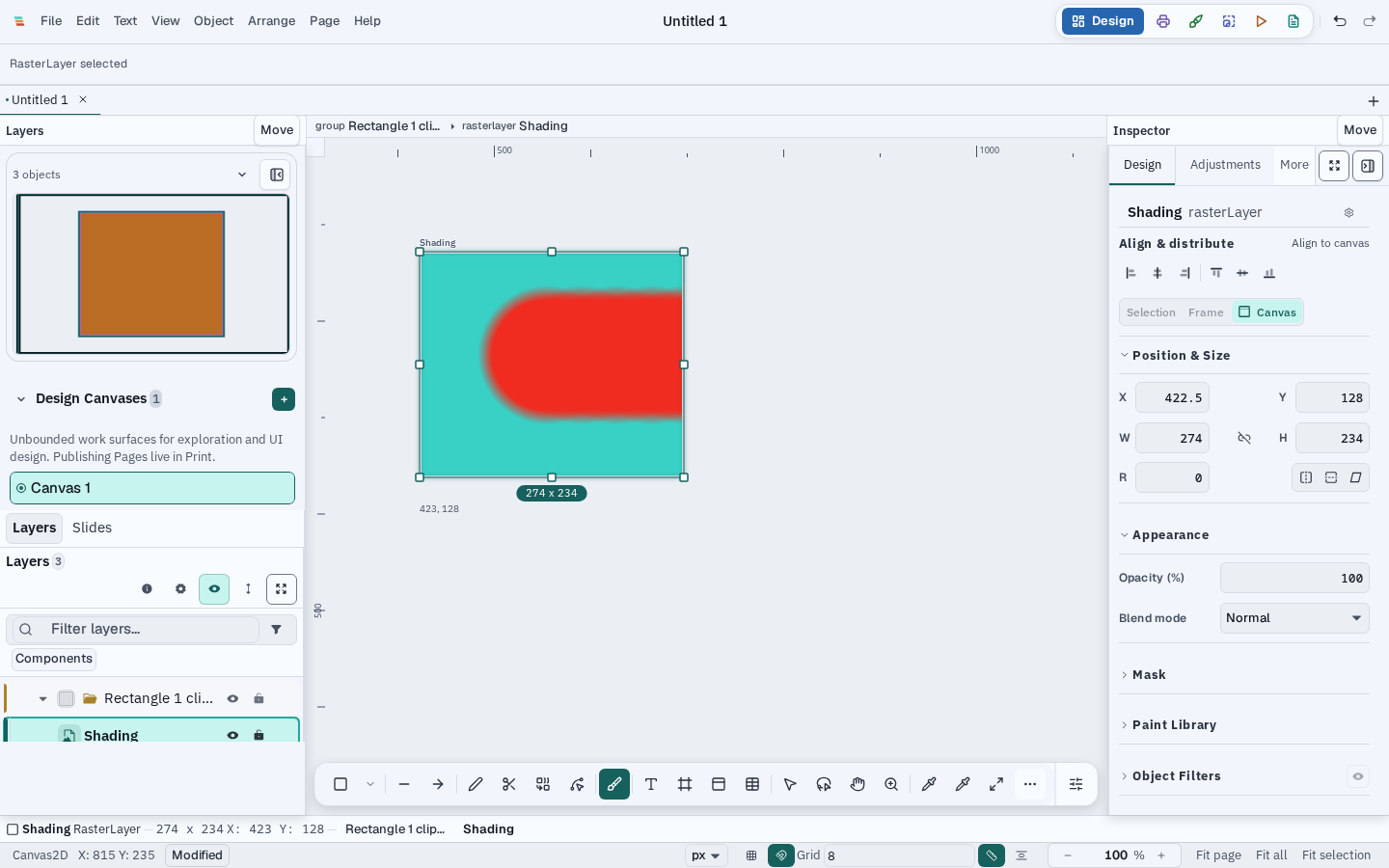
In Design, select a visible raster layer and create a separate Shading layer clipped to its alpha. The live matte keeps paint inside the source silhouette, while edits remain undoable and survive save/reopen and transparent PNG export.
With no layer selected, Paint uses an eligible pixel layer on the active page or creates a named Brush Layer on a blank canvas. An explicit vector or object selection never redirects a stroke to another layer; Varve refuses it and announces how to add a paint layer.
Current layer sampling stays available when the selection should come from one raster. Visible artwork uses the rendered active surface as its source, while fills still write to one selected pixel layer. Edge expansion grows coverage by up to 8 source pixels under antialiased linework. Contiguous visible-artwork sampling can also close short contour gaps with a bounded 0–8 px radius; larger openings may still reach the exterior, so inspect the selection before filling.
PNG/raster export uses the full Canvas2D replay. SVG keeps supported center strokes, gradients, dashes, miter limits, markers, and editable text strokes native; alignment, asymmetric borders, pressure-variable paths, image borders, frames, and stacked stroke cases use a bounded raster fallback when required for fidelity. PDF applies the same honest fallback for features its native path writer cannot represent.
Read the Stroke guide for the target matrix and the Export & Code Generation guide for broader format behavior.