Presentation authoring in Design
Build a slide sequence from ordinary editable frames on the Design Canvas. The deck owns its order; canvas position and layer order stay available for the rest of your design work.
A local deck from canvas to delivery
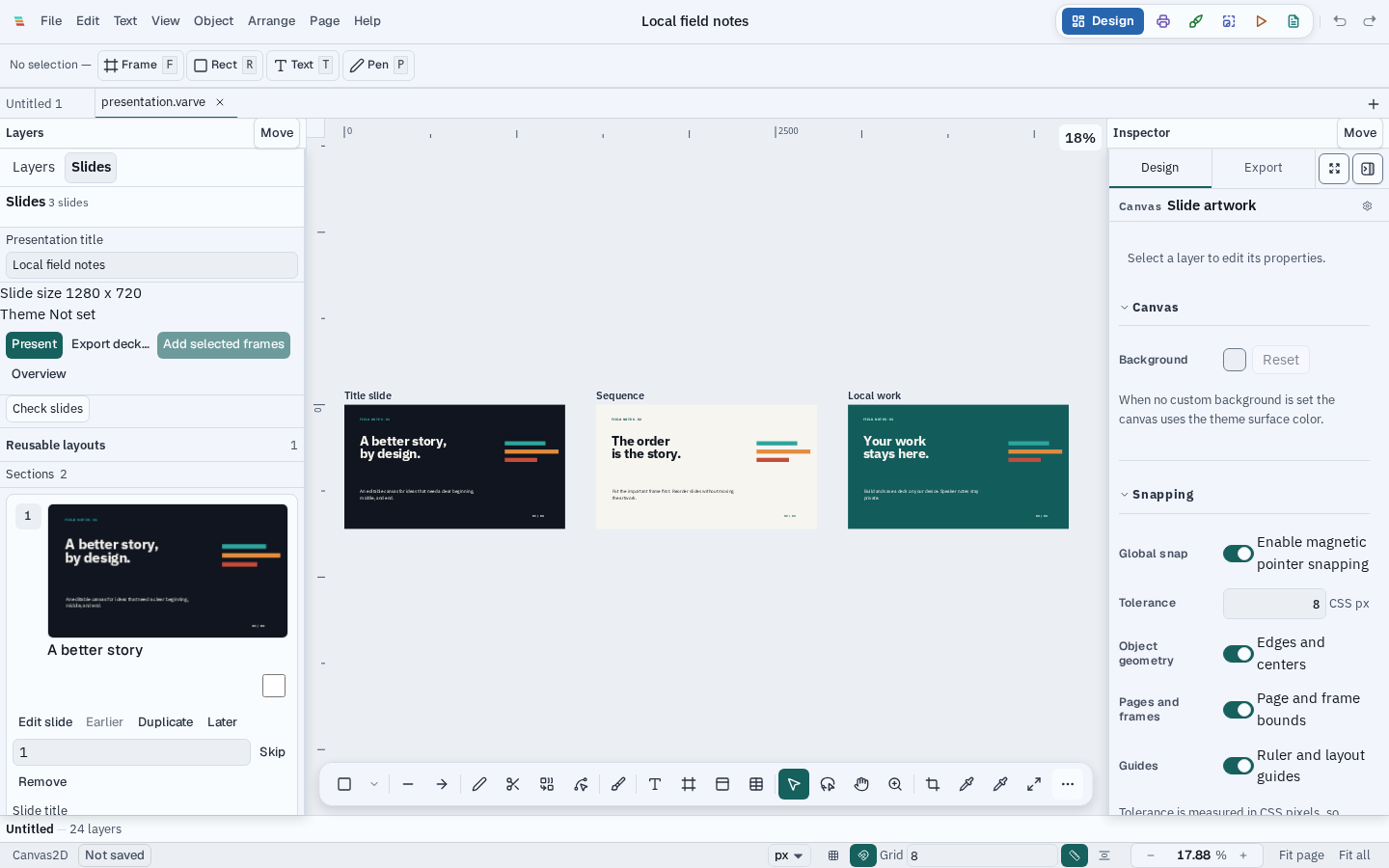
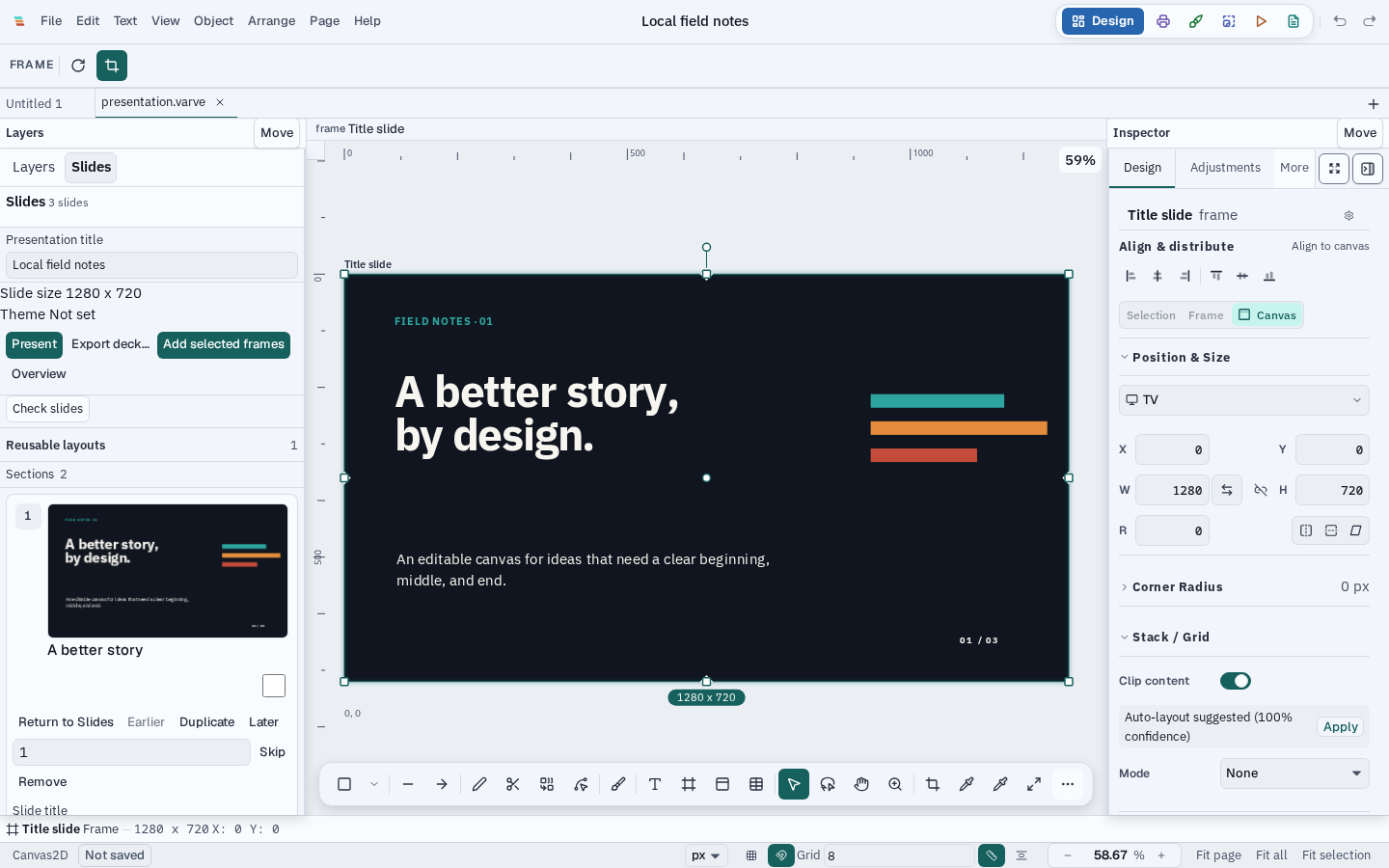
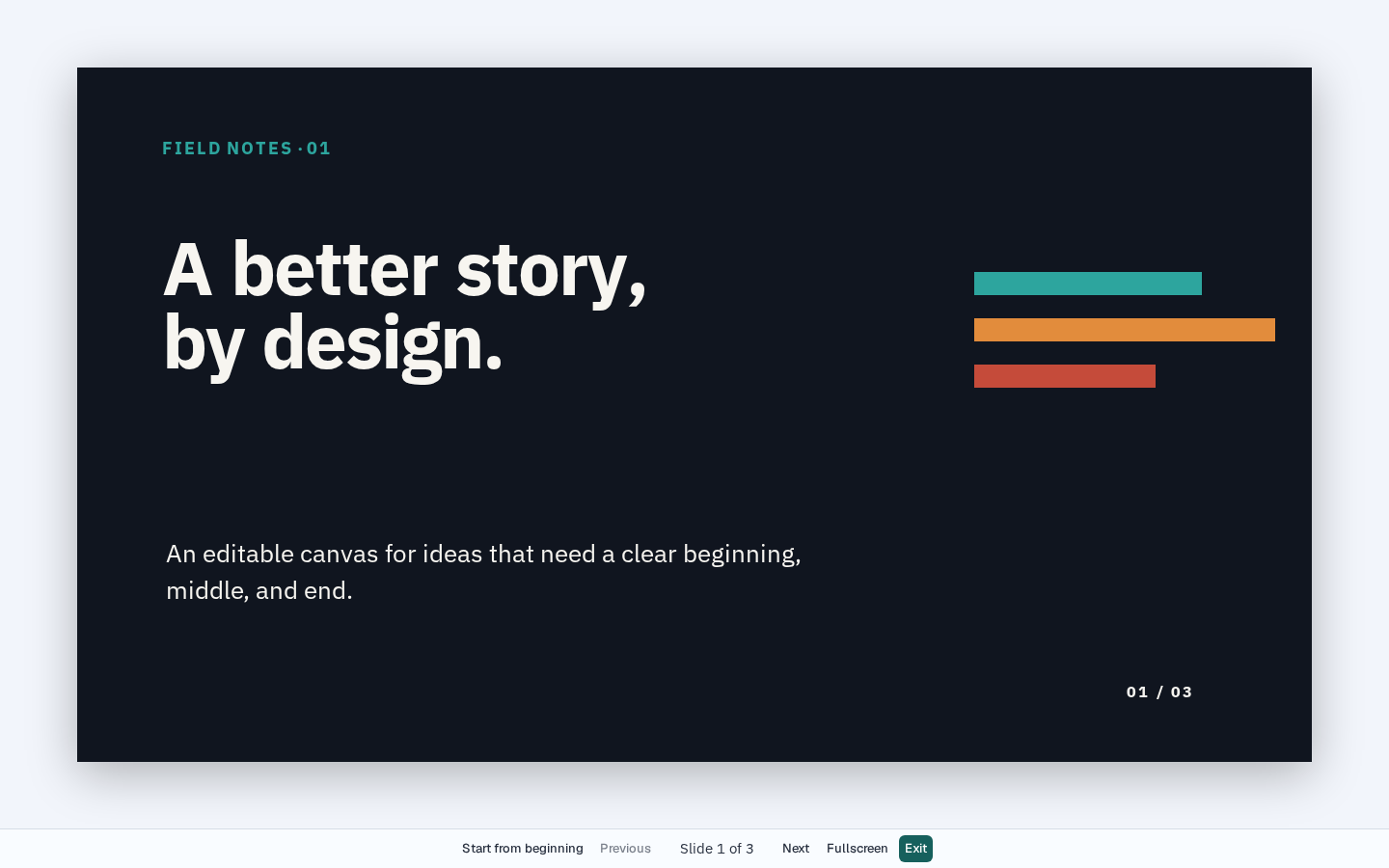
The same editable frames appear in the Slides navigator, on the canvas, in audience preview, and in exported files. Preview navigation does not change the document or reveal private notes.
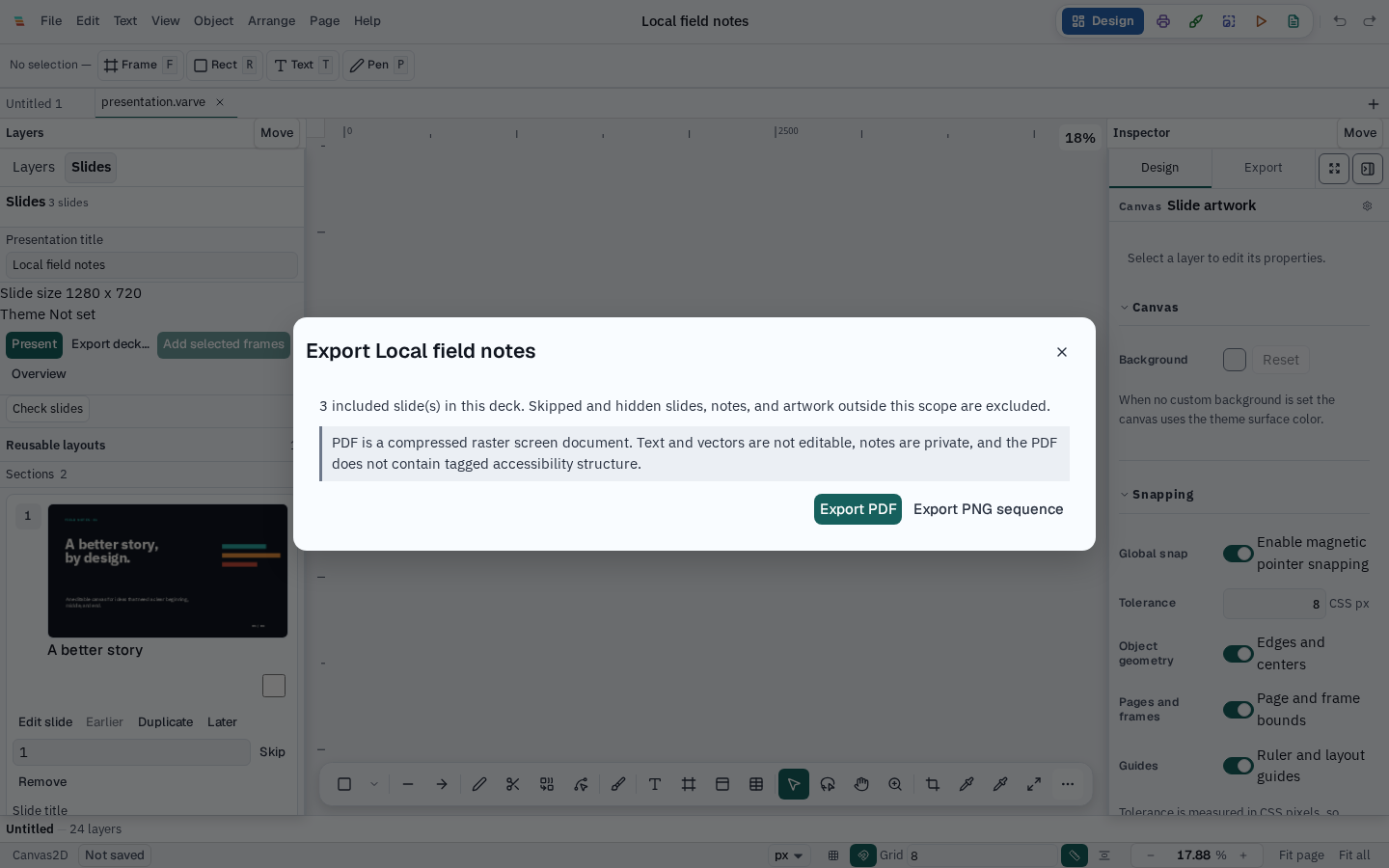
One canvas, an explicit slide order
Create a presentation with a 16:9, 4:3, vertical, or custom first slide, or assemble a deck from selected frames after reviewing their order. The Slides navigator supports titles, private speaker notes, sections, skipped drafts, multi-selection, and visible Move earlier, Move later, and Move to position controls. Removing a slide reference keeps its frame artwork.
Each slide remains editable in the normal Design canvas and participates in the document's save and undo history. Multiple decks can reference the same artwork, and missing frame references remain listed with their notes so they can be repaired.
Layouts you can see, trace, and undo
Applying a layout records what it managed on each object. The Slides layout manager then reports every mapped object as Inherited, Locally changed, or Object removed, names the exact property that changed, and offers a reset for that one property or for the whole slide. Reset restores only the values the layout owns, so corner radii, gradients, fills, effects, text, and object identity are untouched. Detaching removes the tracking metadata only; the artwork on screen is unchanged, because nothing stays live between a layout source and a slide.
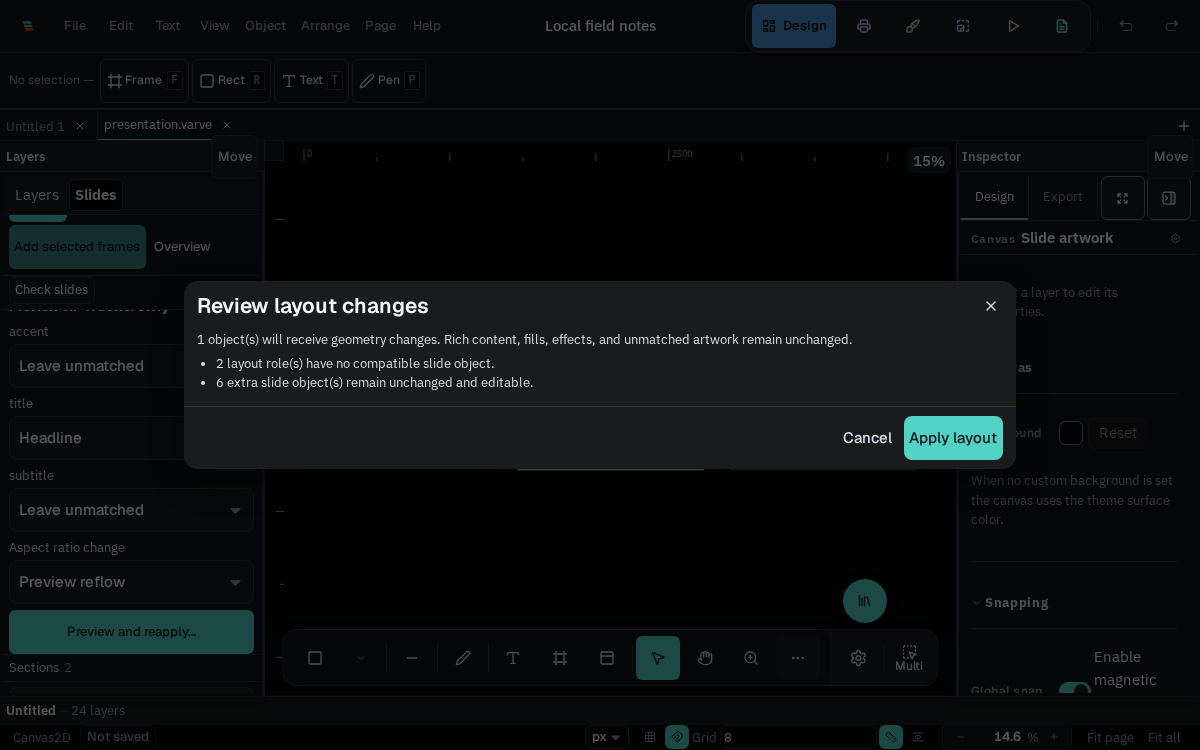
Reapplying a layout is previewed and confirmed before it changes the frame, and the change is one undo step. The layout only manages mapped geometry; it does not transfer typography, fills, effects, or other formatting.
One Present command
Presenting a deck document plays the deck; presenting a document without one still plays the prototype. The same command routes the decision, so the menubar, the keyboard shortcut, and the command palette never disagree about what Present means. Deck commands are also reachable directly from the palette: present from the current slide, export the deck, or add selected frames.
During playback the stage owns the keyboard: Space and Enter advance, the arrows and PageUp/PageDown move, Home and End jump, and Escape exits with focus returned to the control that opened the preview. Reaching either end stops and announces the boundary rather than wrapping silently, so a presenter can tell a finished deck from a dropped keypress.
Current source-build preview
The current source build covers deck creation, ordered slide navigation with rendered thumbnails, private notes, sections, audience preview, and multipage PDF or PNG-sequence delivery for the whole deck or selected slides. This capability is not yet included in a published Varve release.
PDF is a compressed raster screen document, one page per included slide. It preserves appearance, but its text and vectors are not editable or searchable and it has no tagged accessibility structure. Speaker notes stay private. PNG output is an ordered archive with numbered slide filenames. Skipped and scene-hidden slides are excluded; an included missing frame blocks export and remains repairable in Slides.
Initial slide checks flag missing artwork, placeholder text, small type, transformed off-slide content, unavailable fonts or image assets, low contrast when solid foreground and background colors are known, and slides without alt descriptions. These checks are advisory except for missing included artwork, and contrast is skipped when the background is ambiguous. Geometry-only reusable layout sources are also in the source build: map stable roles, review reflow/fit/crop, then apply in one undoable step. Slide text, paint, effects, crop intent, overrides, and unmatched artwork stay intact. Seven original editable layout sources cover title/section, body, image/text, comparison, evidence, process, and conclusion; they live on a dedicated Design Canvas and use bundled typography with no external stock media. On top of that, per-object override reporting, single-property and whole-slide geometry reset, and appearance-preserving detach are in the source build. Preview and the delivered PNG are checked against each other in the test suite — the same slide rasterizes identically in both, at the deck's declared pixel size. Detailed readability analysis and formatting inheritance remain in development.
Change the format without losing the work
Pick 16:9, 4:3, vertical, or a custom size and the deck shows a before-and-after review first: how many slides are affected, what happens to their content, and every warning.Fit inside and Fill and crop keep proportions;Stretch is the only mode that changes them, is labelled as such, and is never applied by accident. The conversion is one undo step, frames keep their canvas position, and artwork outside the deck is untouched.
A theme links each role — title, subtitle, body, caption, accent, background — to a real document colour variable. Editing that variable in the Variables panel recolours every slide that still follows it, so a brand change is one edit rather than a walk through the deck. Objects you deliberately recoloured are left alone when you switch, andDetach theme bakes the colour that is on screen so the object stops following the brand without changing how it looks.
Built around real workflow failures
Existing-layout rebuilding, masks disappearing in slide export, and export actions that become unavailable are documented as regression scenarios. The roadmap treats layout reapplication as a preview-and-confirm operation, requires output checks against the editor, and keeps failures actionable instead of silently omitting content.
Read the presentation authoring guide for current behavior and the documented delivery boundaries.
Follow the source-build preview
This presentation workflow is not included in a published Varve release yet.
Read the presentation guide