Logo tools inside Design
Create marks, wordmarks, monograms, and brand assets in the Design workspace. Logo is a focused toolset inside the shared editor, so logo work keeps the same document, selection, viewport, and history as the rest of your design work.
From first path to delivery
- Use node editing, pen and shape tools, Boolean operations, and text outlining to refine a mark.
- Keep logo project details and clear-space guides with the document.
- Review vector and small-size risks, then export the artwork through the shared export workflow.
The Logo shortcut, Ctrl+Shift+7, opens Design and shows Logo Tools. You can also open the Logo panel from the View menu or command palette.
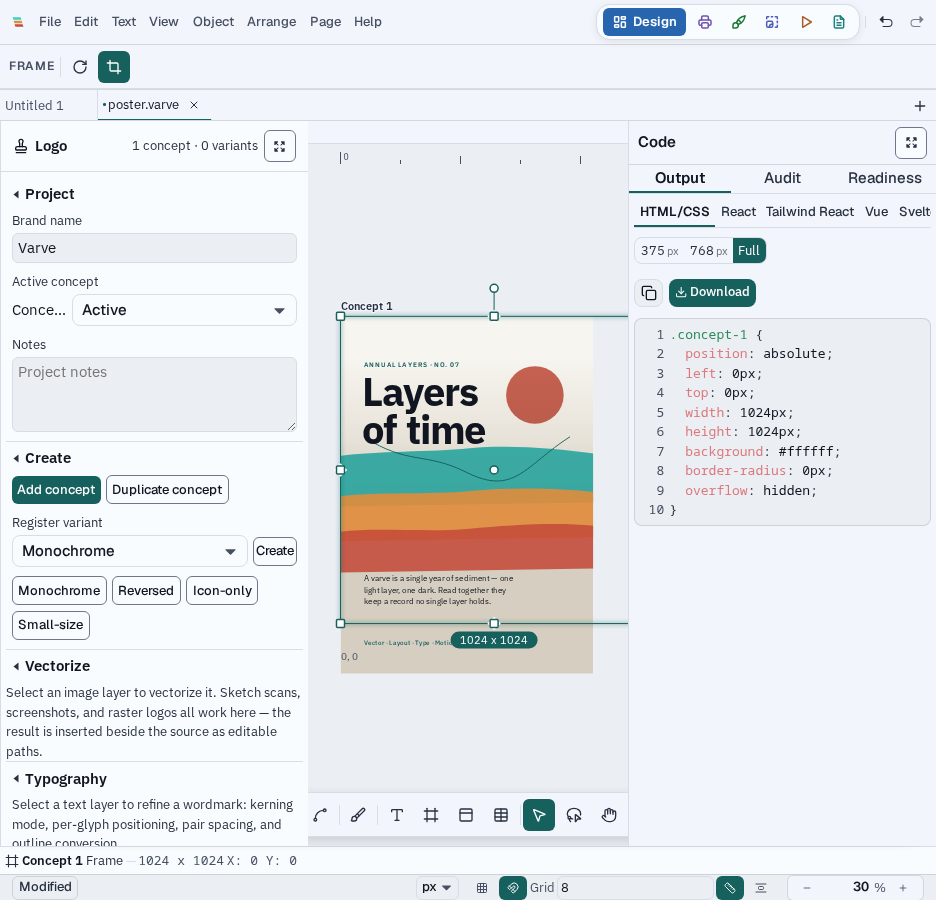
A design workflow, not a separate document mode
Logo work uses the same scene and editing tools as Design. The panel adds logo-specific project controls and checks; changing workspace does not create a logo-only copy of your document. See Vector Tools andExport for the underlying editing and delivery workflows.